Today, data does not come from one place. Sales orders sit in SAP. Leads live in Salesforce. Different departments run on different systems. Modern BI platforms connect easily to multiple data sources: Snowflake, Azure Synapse, even legacy SAP BW. Power BI’s Get Data is where this begins.
The connector you pick is not just a technical setting. It determines data latency, query performance, available features, and governance. The right way to think about it is this: what is the source, what path does the data take, and what does the report actually require. That framing drives every good connector decision.
Microsoft Fabric: The Modern Data Stack
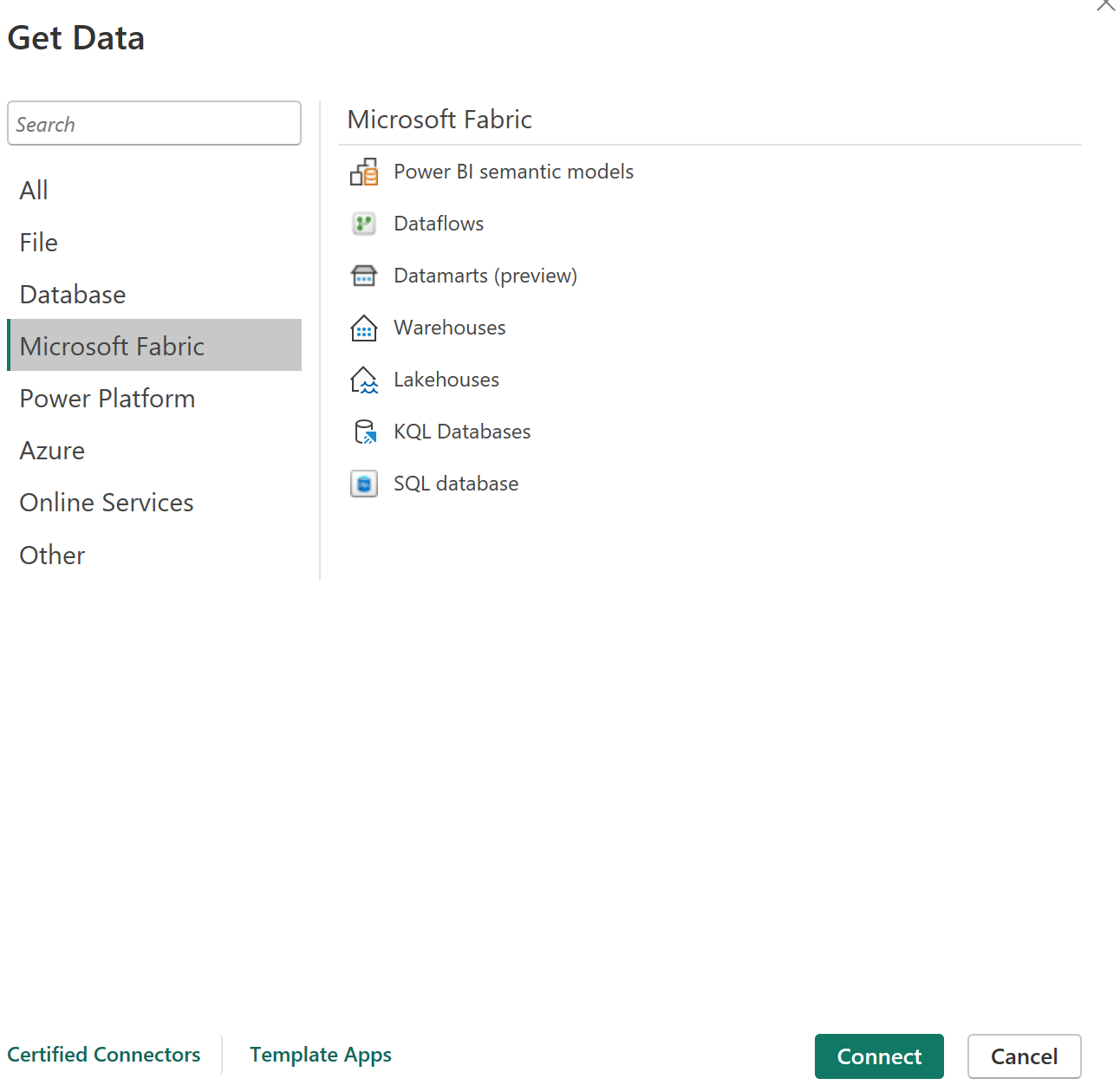
Microsoft Fabric unifies what was previously a collection of separate Azure services into a single capacity licence with a shared storage layer called OneLake. This changes how data platforms are built in Microsoft environments.
Within Fabric, transformation happens through Dataflows Gen 2 for low-code ingestion, pipelines for orchestration, and notebooks for code-first engineering. Lakehouses store data in open Delta format on OneLake, which is built on Apache Parquet format underneath. Pure data science workloads favour Parquet precisely because column names, data types, and nullability are encoded within the file itself. This removes dependency on an external schema definition and makes the data self-describing. They serve as the central landing zone that multiple reports and semantic models can share. Warehouses provide a SQL endpoint for structured analytical workloads. KQL Databases handle real-time event streams.
In a mature Fabric setup, Power BI does not connect to source systems directly at report time. It connects to governed Lakehouse or Warehouse tables that Dataflows Gen 2, pipelines, or notebooks have already prepared. The Microsoft Fabric enterprise BI guidance is explicit on this point. The Get Data connector is the last step, not the first.
Databases: The Relational Workhorses
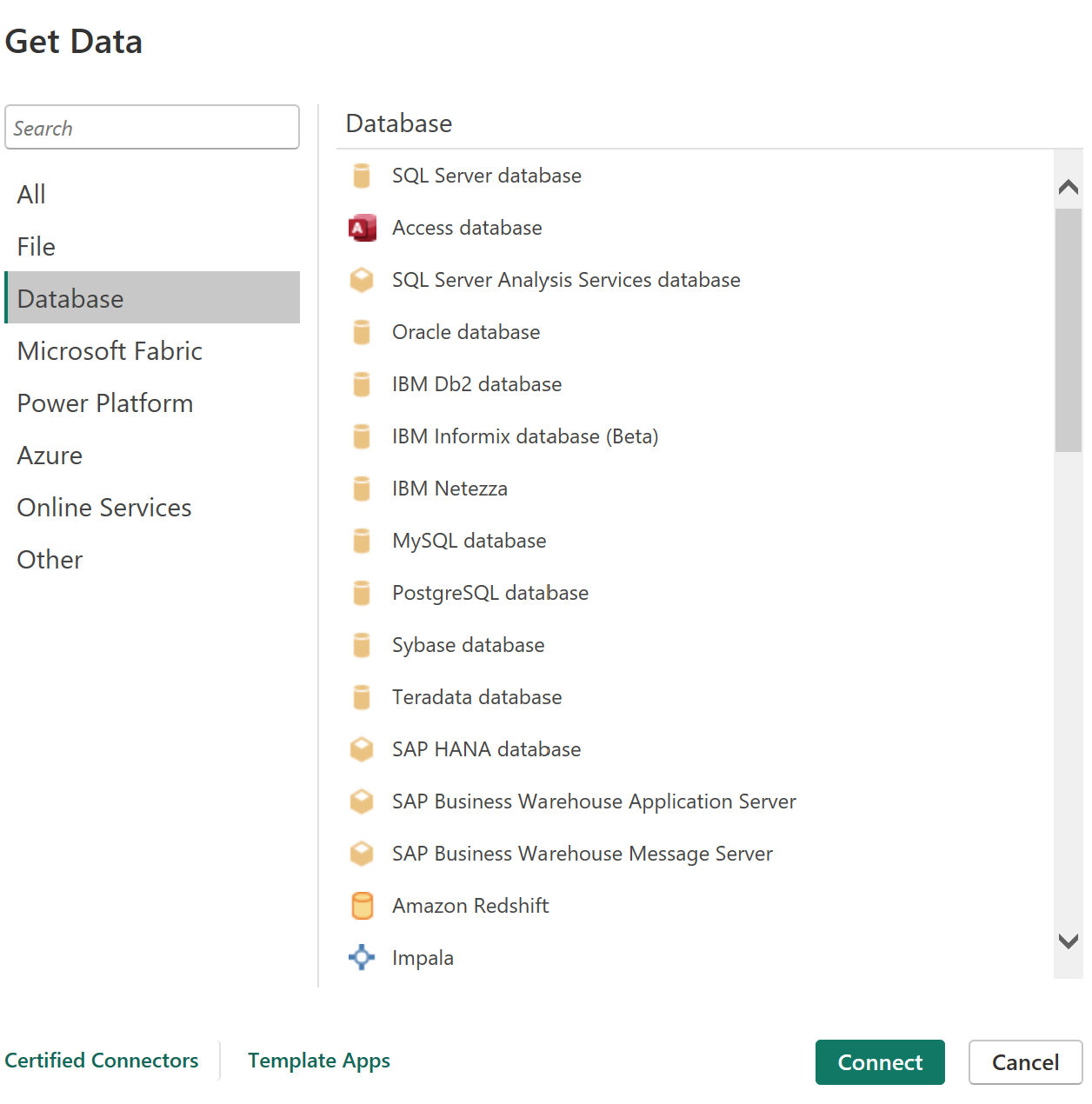
SQL Server, PostgreSQL, MySQL, Oracle, IBM Db2, and Amazon Redshift cover the most widely deployed data sources in enterprise environments. These are well-understood sources with predictable query behaviour. They support both Import and DirectQuery connection modes. For many organisations that have not yet moved to cloud-native architecture, these remain the primary layer feeding Power BI reports. Amazon Redshift supports DirectQuery but Import mode is preferred in production for performance reasons.
SAP HANA deserves specific mention. Enterprises still running SAP BW connect through the BW connector rather than HANA DirectQuery. The CDS view approach applies to modern S/4HANA deployments. In SAP environments, ABAP developers write CDS views, Core Data Services, directly on the HANA layer. A well-built CDS view handles joins, client filters, currency conversion, and authorisation checks. It presents a clean, business-ready data model without exposing raw SAP tables. Power BI connects to SAP HANA using DirectQuery, reading the CDS view live at query time. No import copy is maintained. The business logic stays in the SAP layer, maintained and versioned by the SAP team.
Pure DirectQuery on SAP HANA has known limits. Cross-source joins are not supported unless Composite Mode is used. Some time intelligence DAX functions do not push down to the HANA engine. High-cardinality columns can degrade query performance. The practical solution is Composite Mode: import small reference and dimension tables, keep large fact tables on DirectQuery against HANA. This unlocks cross-source joins and preserves data freshness where it matters while maintaining report performance.
Azure: Cloud-Native Sources
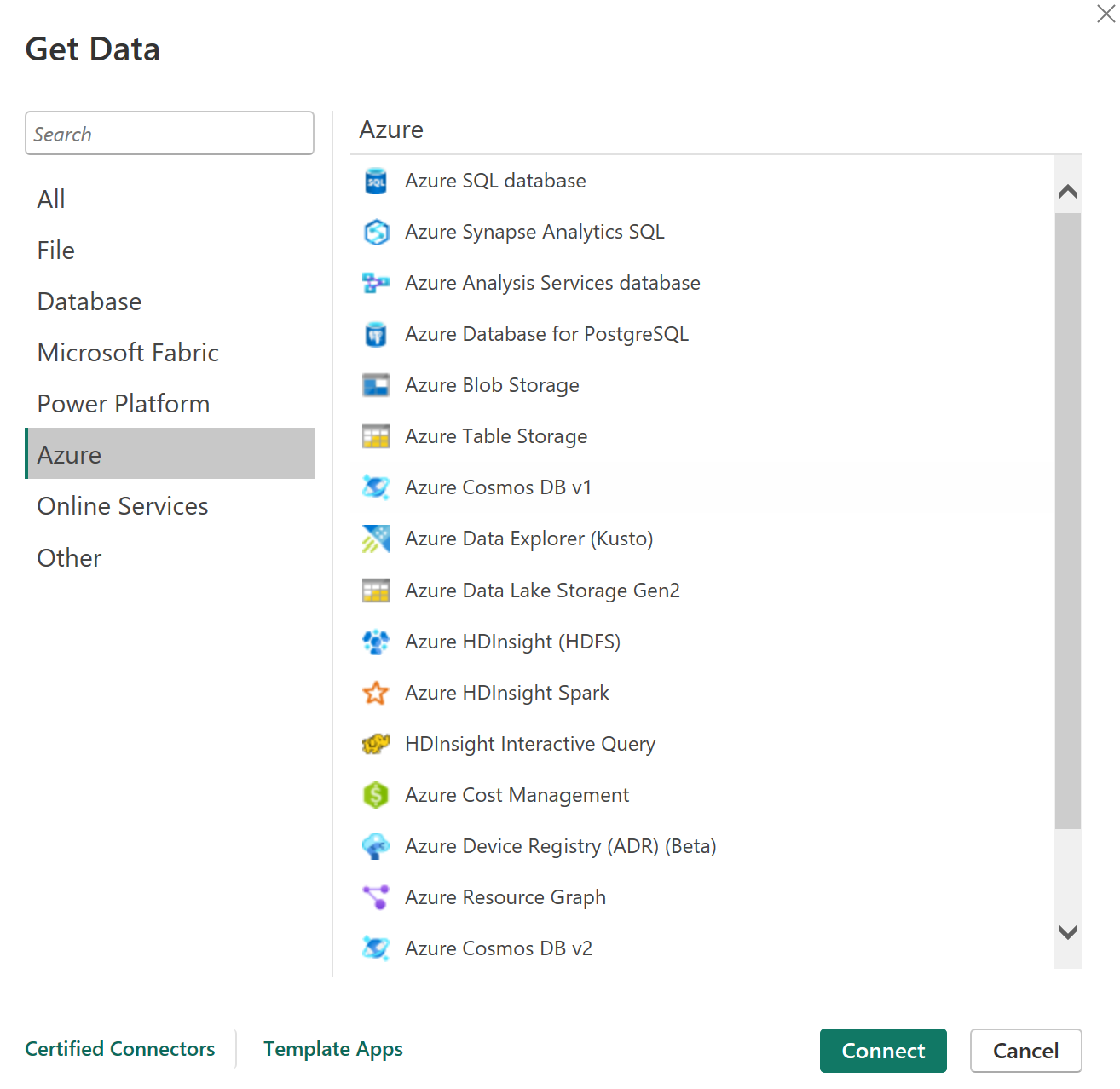
Azure SQL Database and Azure Synapse Analytics SQL are the primary cloud relational sources. Synapse handles large-scale analytical workloads. Synapse SQL pools remain widely deployed, but Fabric Warehouse is Microsoft’s strategic direction for cloud BI. Azure Data Lake Storage Gen2 connects to raw data zones. Azure Blob Storage covers unstructured file storage. Azure Cosmos DB supports NoSQL document workloads. Azure Data Explorer serves time-series and log analytics scenarios.
In hybrid environments where some workloads remain on-premise and others sit in Azure, these connectors bridge the two. Power BI developers are often the end consumers of Azure infrastructure that data engineering teams have already built. Knowing what sits behind a connector, and what it means for performance and data freshness, is what allows a practitioner to participate in architecture conversations meaningfully.
The DirectQuery Effect on Page Refresh
Every connector in Power BI delivers data through one of two modes. This is not a minor detail. It determines which features are available and how the report behaves in production.
Import mode copies a snapshot of source data into Power BI’s in-memory VertiPaq engine. Visuals render against this local copy. The data is only as current as the last scheduled refresh. Scheduled refresh is an Import mode concept. It runs on a defined interval in the Power BI Service and updates the snapshot.
DirectQuery sends a live query to the source system every time a visual renders or a filter is applied. There is no data copy. The data is always current. Scheduled refresh does not exist in DirectQuery because there is no snapshot to update. What you manage instead is query performance, caching strategy, and query reduction settings. Certain Power BI features including AI visuals and some DAX functions are only available in Import mode. Import mode unlocks the full Power BI feature set, while DirectQuery trades features for freshness.
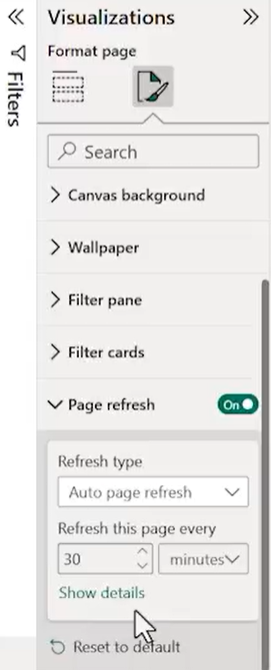
The automatic page refresh feature visible in the Format Page panel follows this same rule. It only appears when the report uses DirectQuery. It allows the report to re-query the source on a set interval, independent of the manual refresh button. For Import mode reports, the option is simply not present. This is not a gap. It is the expected consequence of the connection mode chosen at design time.
For SAP HANA via CDS views, DirectQuery with Composite Mode is typically the right architecture. The HANA engine handles live queries efficiently and the business requires current data. For large historical datasets in a relational database or Fabric Warehouse, Import mode with a well-scheduled refresh delivers better report performance and broader feature support. The decision is made at design time. Not after the report is built.